
By nick | sep 2025
In 2025, launching an online store is easier than ever but getting started can still feel overwhelming.
You’ve got an idea. Maybe a product. Maybe just a vision. You’ve seen others turn theirs into beautifully designed Shopify stores, and now you’re ready to build your own.
But with no roadmap, where do you even begin?
This guide breaks it all down. From choosing what to sell to customizing your storefront and launching your first product, here’s how to set up a fully functional Shopify store from scratch even if you’ve never sold anything online before.
Why Shopify?
Founded in 2006 by a team that wanted to sell snowboards online, Shopify is now the go-to eCommerce platform for over 1.75 million merchants worldwide.
What makes Shopify stand out? Simplicity, power, and scalability.
With Shopify, you can:
Create a professional online storefront (no coding needed)
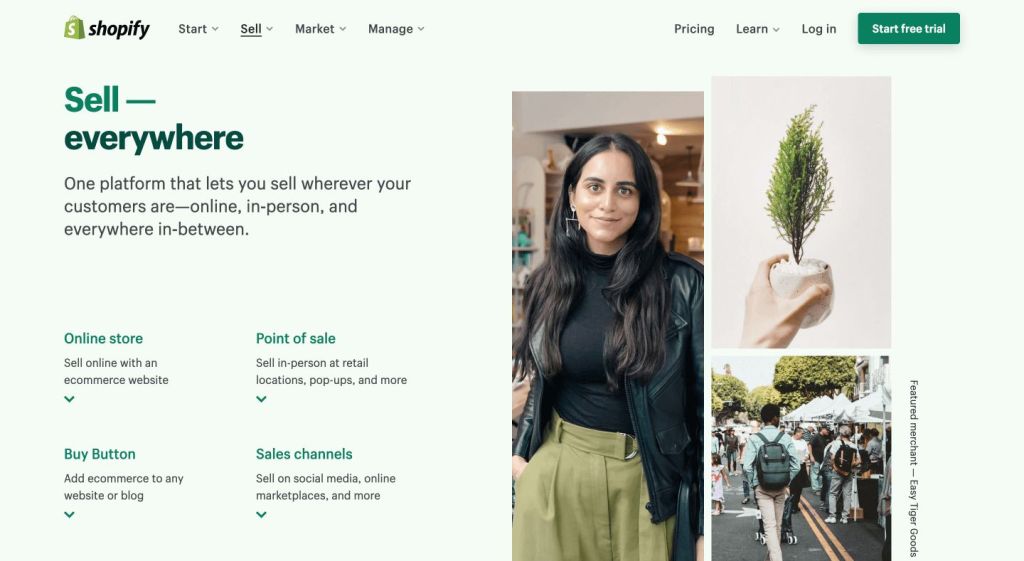
Sell physical or digital products
Accept payments and handle shipping logistics
Manage everything from a single dashboard
Sell in-person with Shopify’s integrated POS system
Whether you’re building a side hustle, launching a full-blown business, or selling your first product, Shopify’s user-friendly setup makes it an ideal place to start.
Step 1: Choose What to Sell
Before diving into design or setup, take a moment to define what you’re selling.
The flexibility of Shopify means you can sell nearly anything:
Physical products: apparel, handmade goods, accessories, gadgets
Digital products: templates, music, ebooks, photography
Services: coaching, consulting, courses
Memberships or subscriptions
Tickets, gift cards, or even event access
Still not sure? Think about problems you can solve, hobbies you love, or communities you understand deeply. That’s often where the best ideas are hiding.
Step 2: Create Your Shopify Account
To get started, head over to Shopify’s website and click Start Free Trial.
Shopify offers:
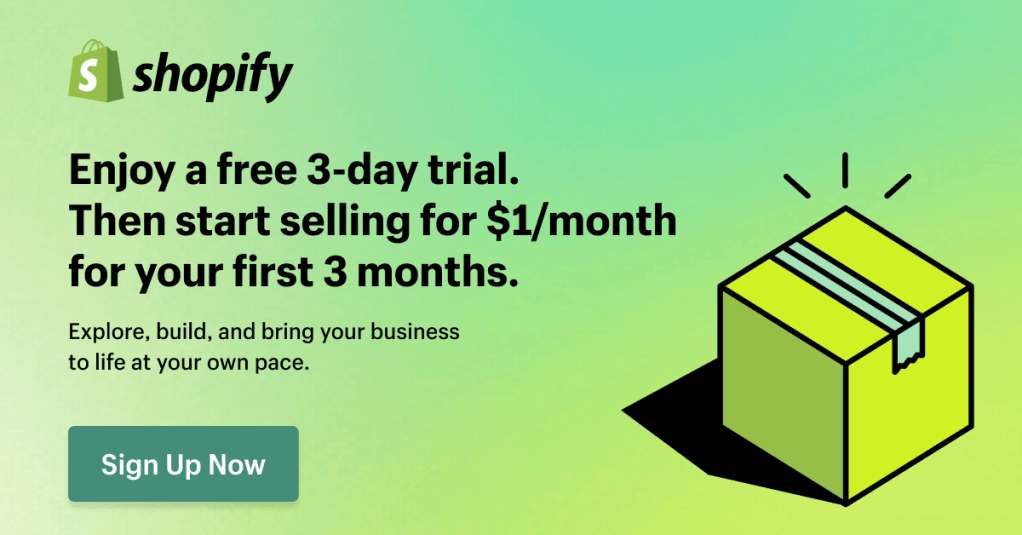
A 3-day free trial
Followed by 3 months at just $1/month a great way to test everything without a big commitment
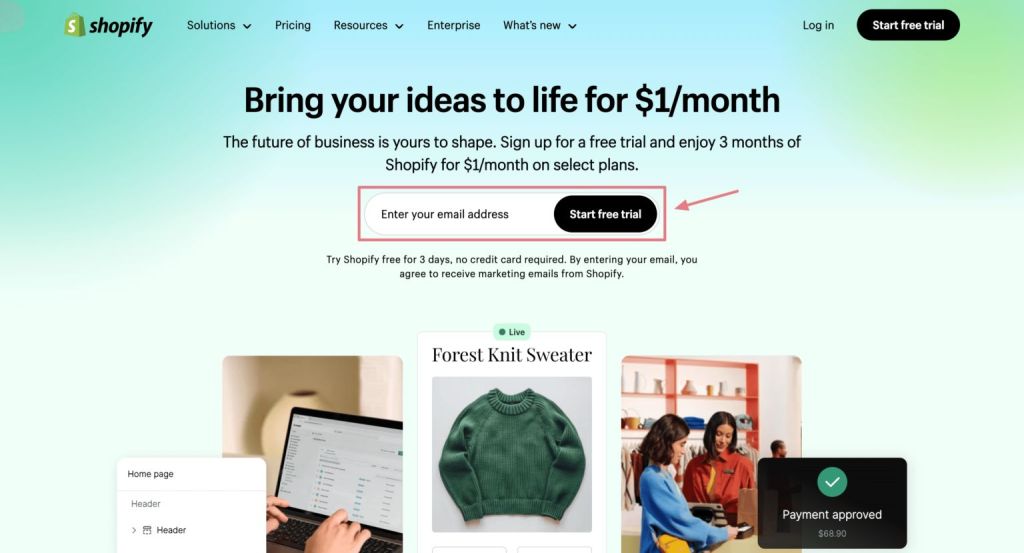
You’ll be asked a few questions about your business experience and store idea. Choose a name (you can change it later as well),
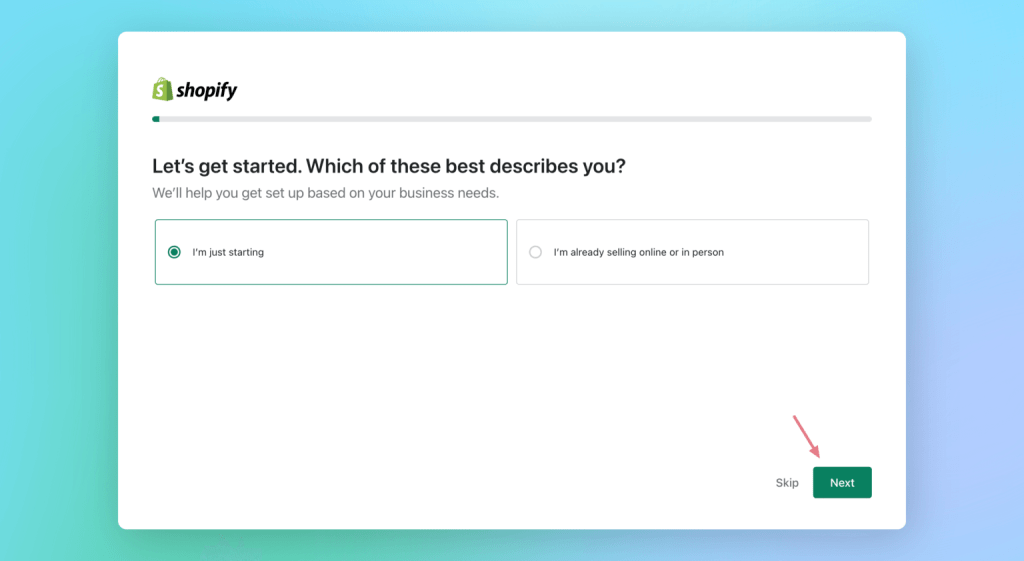
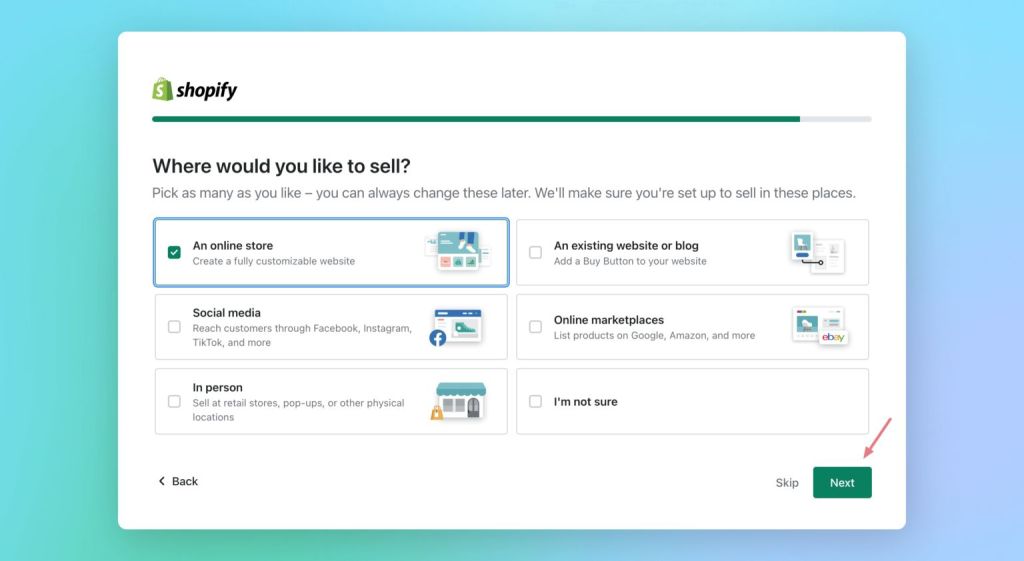
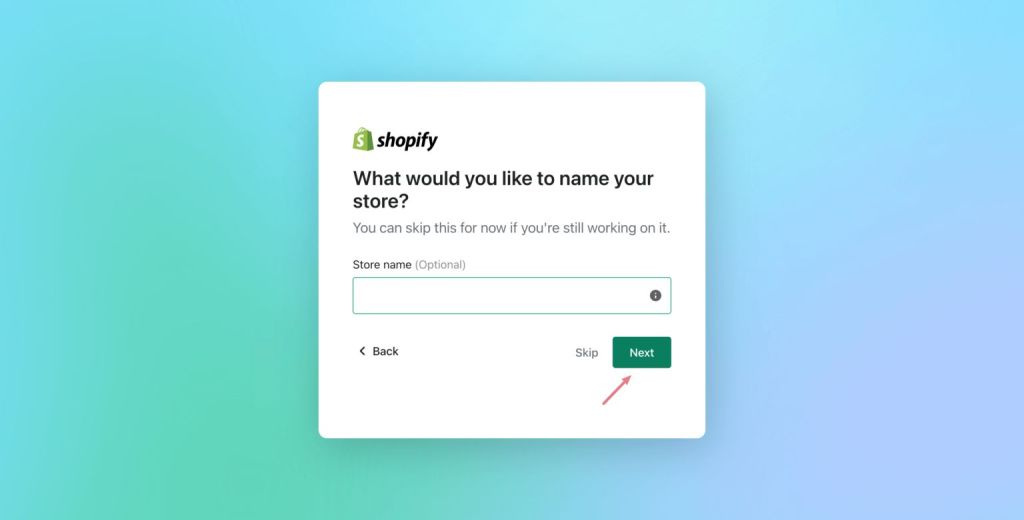
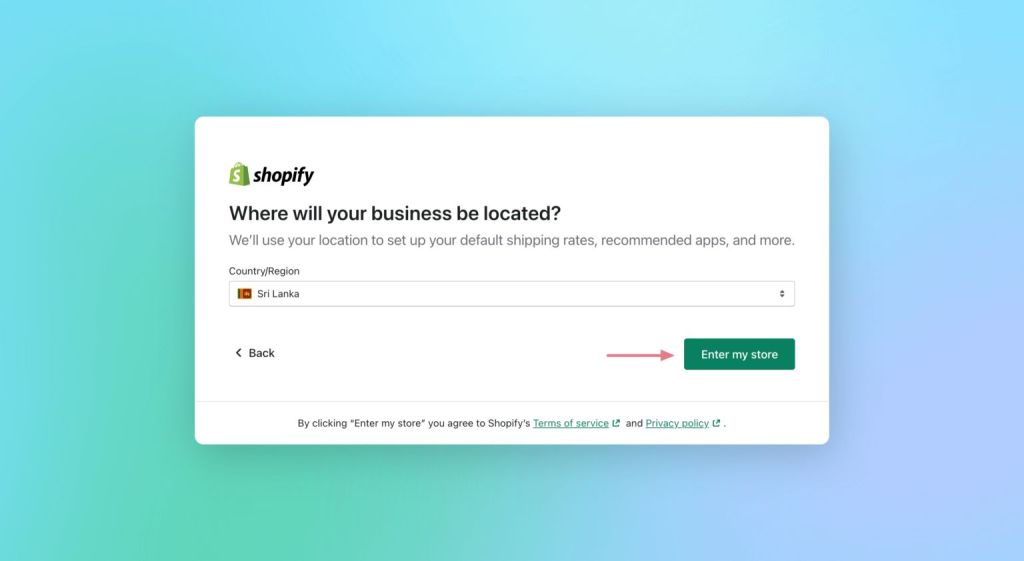
enter your business location, and create your account.
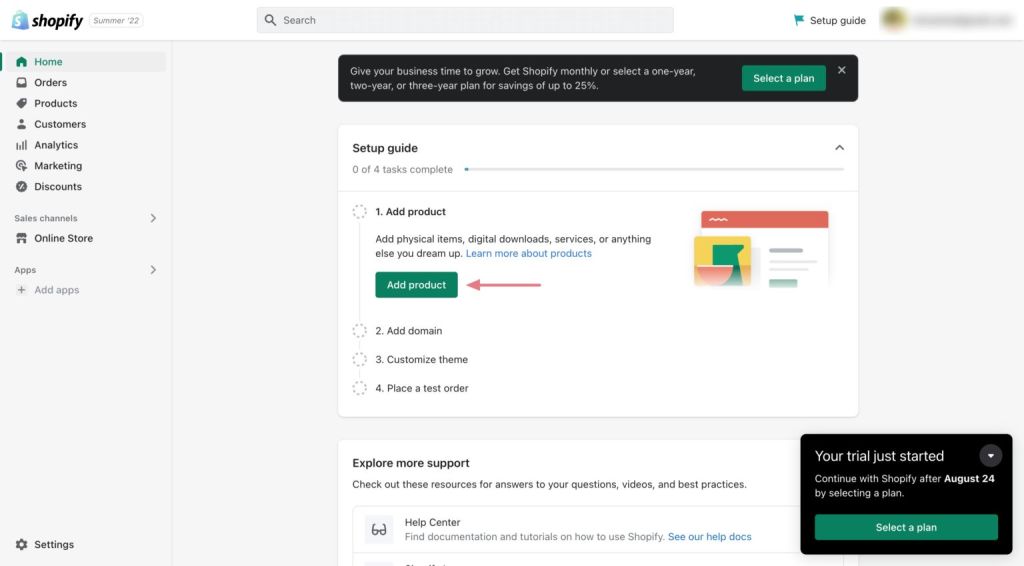
After confirming your email, your store dashboard will be ready to explore.
—
Step 3: Add Your First Product
Inside the Shopify dashboard, click “Add Product.” This is where you’ll define everything a customer sees:

Product name and description
Price and inventory settings
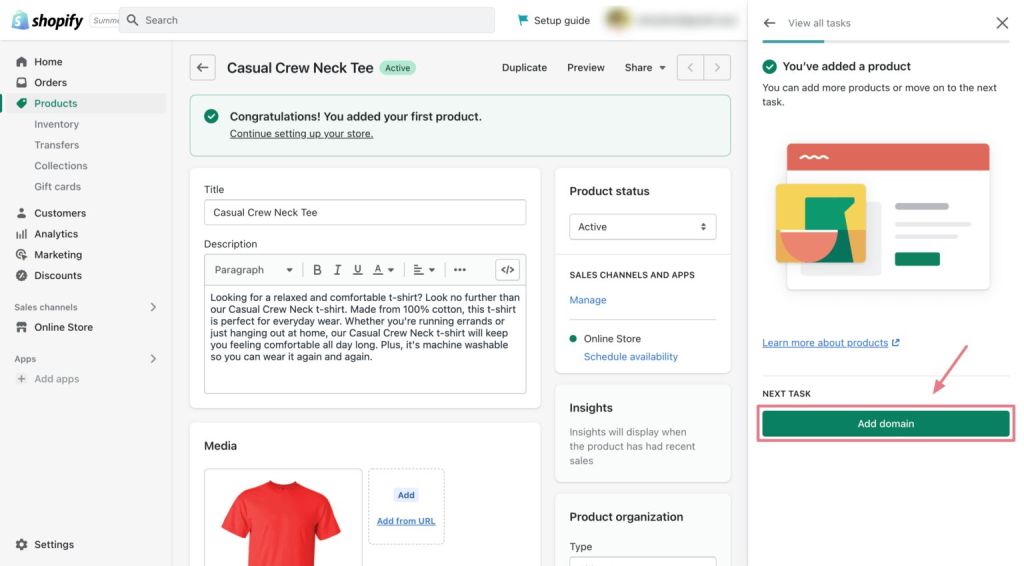
High-quality images or videos
Product categories or tags
For a clean, professional look, remove backgrounds from your product photos using AI-based tools. A polished product presentation goes a long way in building trust.

Once done, hit Save and just like that, your first product is live in your store (though not yet visible to the public).
Step 4: Set Up a Custom Domain
A memorable domain gives your brand credibility and makes your site easy to find.
By default, Shopify assigns a subdomain (e.g. yourstore.myshopify.com). But you can purchase or connect a custom domain directly from your dashboard.
Go to Settings > Domains and choose either:
Buy new domain through Shopify
Connect existing domain from a provider like Namecheap

Tip: Choose something short, easy to spell, and on-brand. If it’s catchy, it sticks.
—
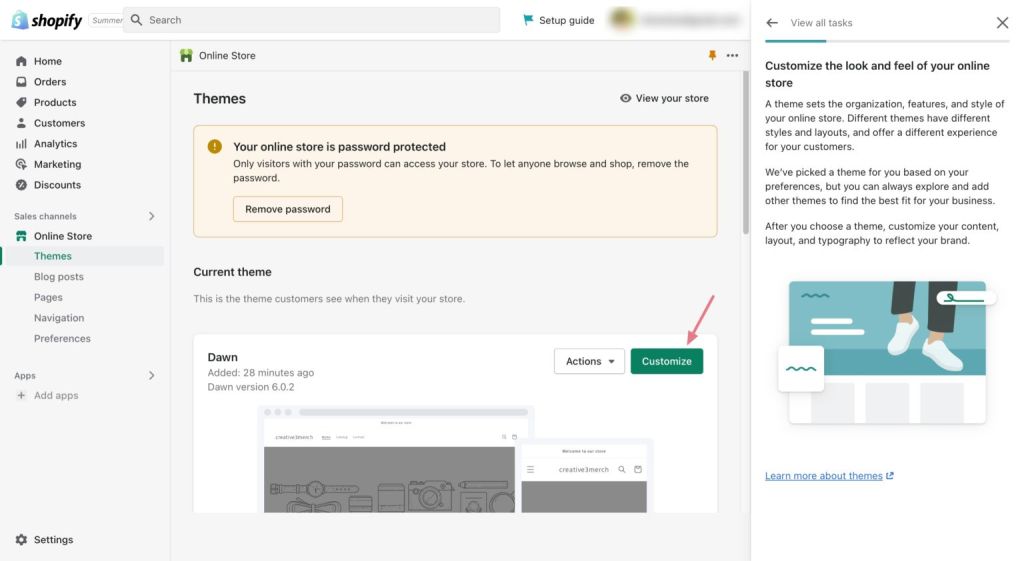
Step 5: Customize Your Store Design
Design can make or break first impressions. Fortunately, Shopify makes it easy to build a storefront that feels uniquely yours.
Navigate to Online Store > Themes, then click Customize. This visual editor allows you to:
Choose layouts and color schemes
Add featured product sections, carousels, and banners
Rearrange your homepage or navigation menus
Preview changes across desktop and mobile
Want a custom logo but don’t have one? Try an AI tool like Looka. It’s cost-effective and surprisingly good for non-designers.
Don’t forget the essentials:
Pages: About, Contact, FAQs, and Legal
SEO settings: Found under Online Store > Preferences
Navigation: Make it intuitive so users don’t get lost
Step 6: Set Up Shipping & Delivery
Whether you’re shipping locally or globally, Shopify makes fulfillment manageable.
Inside Settings > Shipping and Delivery, you can:
Set shipping zones
Offer flat rates, free shipping, or real-time carrier rates
Enable local pickup or delivery options
It’s also important to configure your tax settings to ensure compliance based on your business location. Shopify offers detailed help guides for both shipping and taxes.
—
Step 7: Configure Payments
Shopify integrates with dozens of payment providers, including Shopify Payments, PayPal, Stripe, and more.
To configure:
Go to Settings > Payments
Choose the gateway you prefer
Enable accepted methods (credit cards, wallets, etc.)
Keep in mind:
Fees vary by provider
Some may not support certain countries or currencies
Shopify Payments typically has the lowest friction (and no extra transaction fees)
Step 8: Test Everything
Before opening your store to the world, run a test order.
This ensures that:
The checkout process is smooth
Payment systems work
Emails and receipts are delivered properly
Inventory updates correctly
Follow Shopify’s testing steps to simulate a full customer experience.
Step 9: Choose a Shopify Plan and Launch
Once everything looks good, it’s time to go live.
To do that:
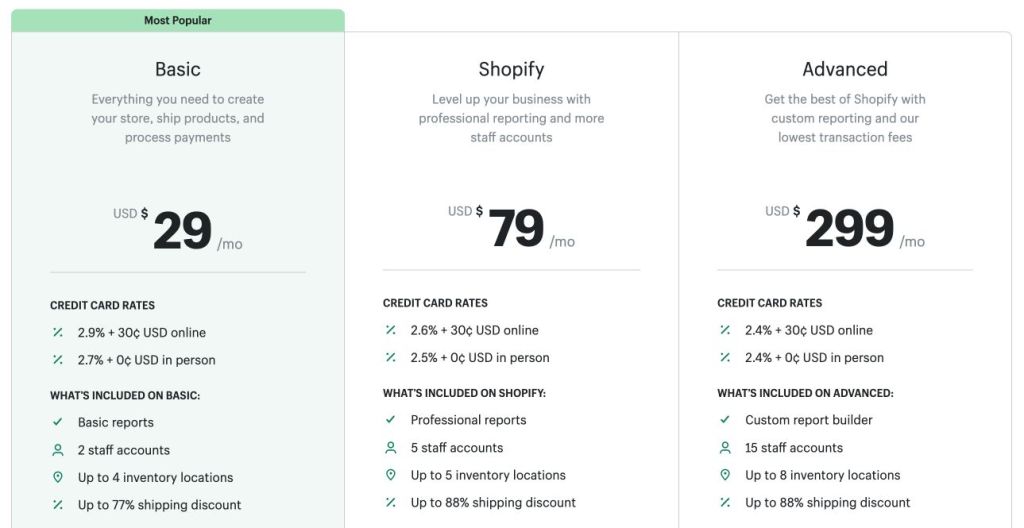
1. Go to Settings > Plan and choose the pricing tier that suits your needs
Basic Plan: $29/month (ideal for new businesses)
Shopify Plan: $79/month (more tools + reports)
Advanced Plan: $299/month (for scaling brands)
2. Disable password protection (Online Store > Preferences > Remove Password)
3. Visit your live site via your custom domain
Congratulations—you’ve officially launched your Shopify store!
What’s Next?
You’ve built the foundation. Now it’s time to grow.
Shopify doesn’t just offer a store builder. It’s an all-in-one platform designed to scale with you. Tap into:
Built-in marketing tools like email campaigns, SEO settings, and abandoned cart recovery
Shopify’s free training center with beginner courses and expert tips
Offline sales through Shopify POS, perfect for pop-ups or retail
You don’t need to have all the answers today. The key is to get started, experiment, and keep improving.
And if you haven’t yet taken the plunge—start your free trial now. You’ve got nothing to lose, and an online business to build.
Final Thoughts
Starting an online store used to be complicated. Not anymore.
With Shopify, anyone can launch a store in a matter of hours—with zero coding and endless growth potential. Whether you’re turning a passion into a side hustle or chasing your first $10K in sales, this platform gives you the tools to make it happen.
So take that idea. Build it. Share it. The internet’s waiting.
Best of luck from Nick
![nick [Alliedify] Avatar](https://0.gravatar.com/avatar/6955a6009ff9c6a76e2eb88c263c9426c8c386b0a7637b4d0cc051871ee8c9f3?s=40&d=identicon&r=G)
 Alliedify
Leave a comment